
Glass Dark Mode Clock builds Tally around an instrument dial: a big circular gauge in the hero and again on the dashboard, frosted black glass, Inter Tight and mono labels, no accent color. The dashboard's dial showing $3,182 spent is the best single idea here. The landing scrolls sideways a little on a phone. Pick it for premium dark products that like a watch-face feel.
Glass Dark Mode Clock vs Light Mode Paper Technical
Meng To · Meng To
Tied at 3/5 on the same brief. Pick by fit: the rows below show where each one is stronger.
Both built the Tally landing page in the same Claude Code test, and both design the Engineer way: monospace, grids and labels. If it isn’t aligned, it isn’t done. Both are best for: visual direction.
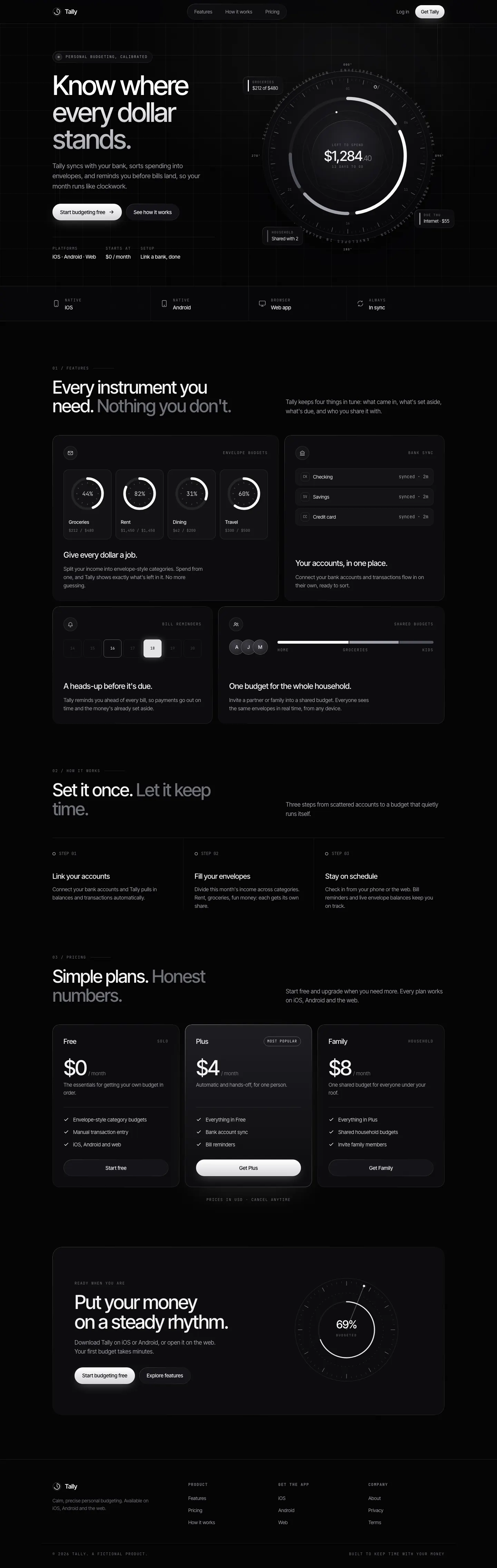
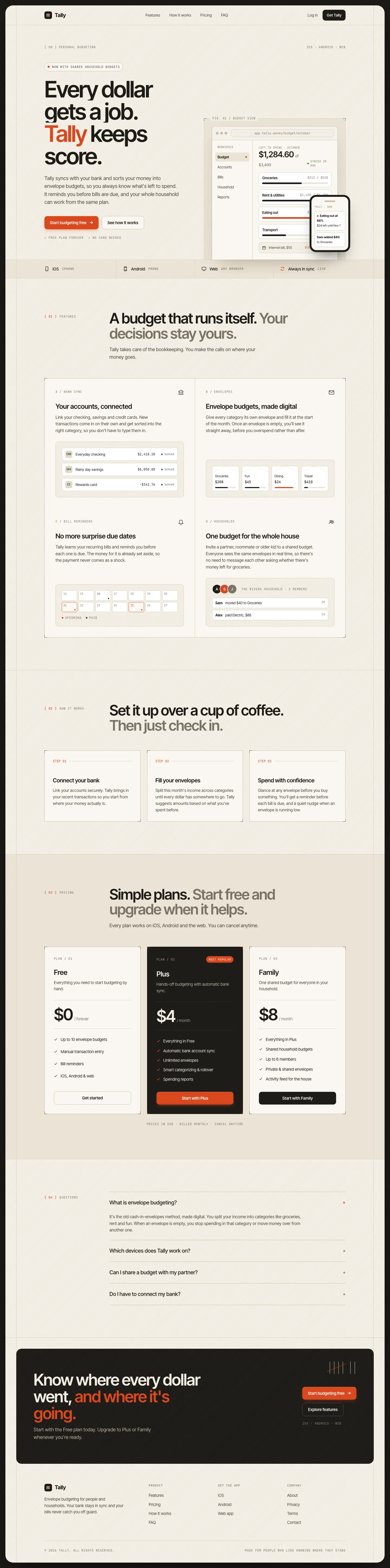
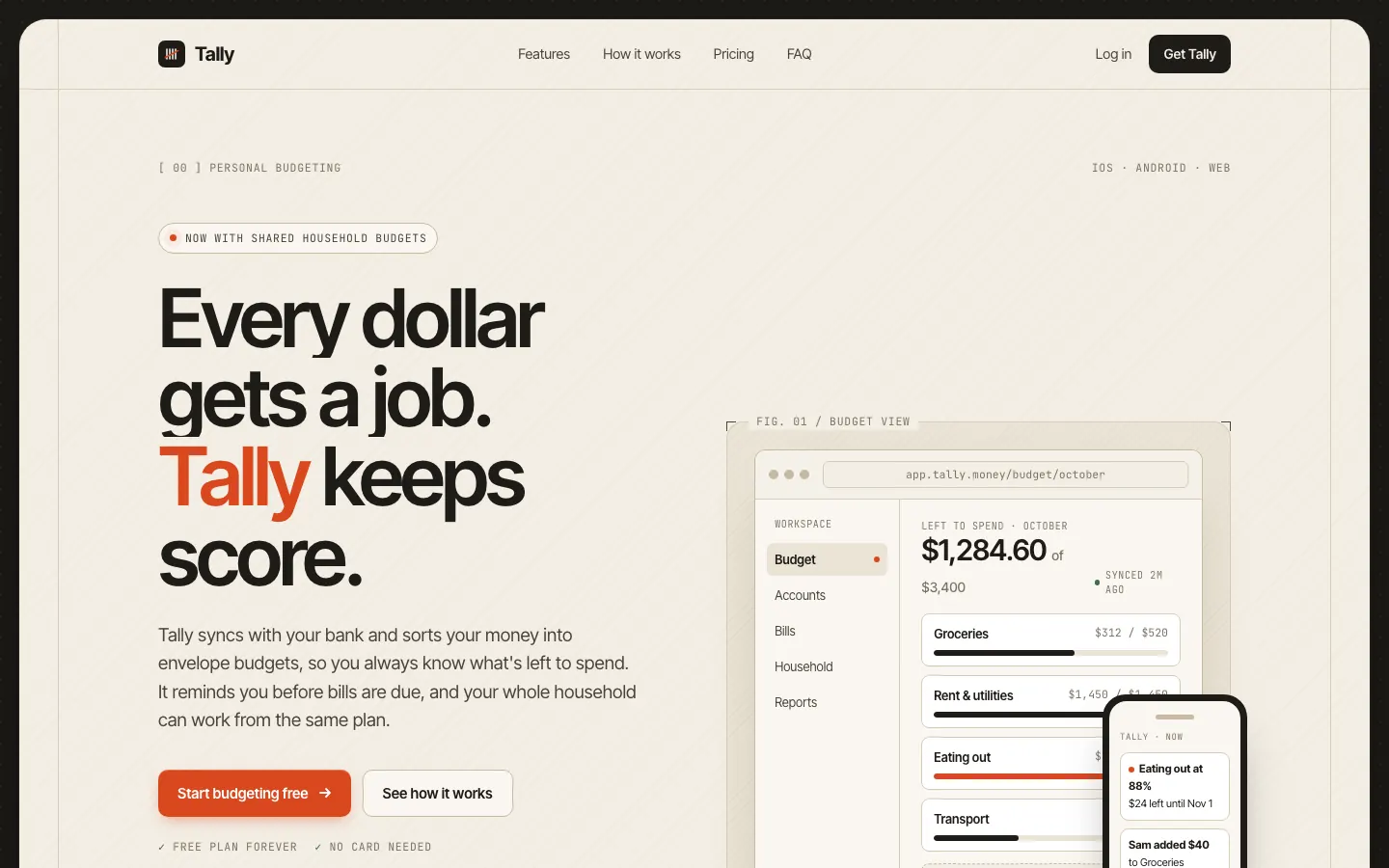
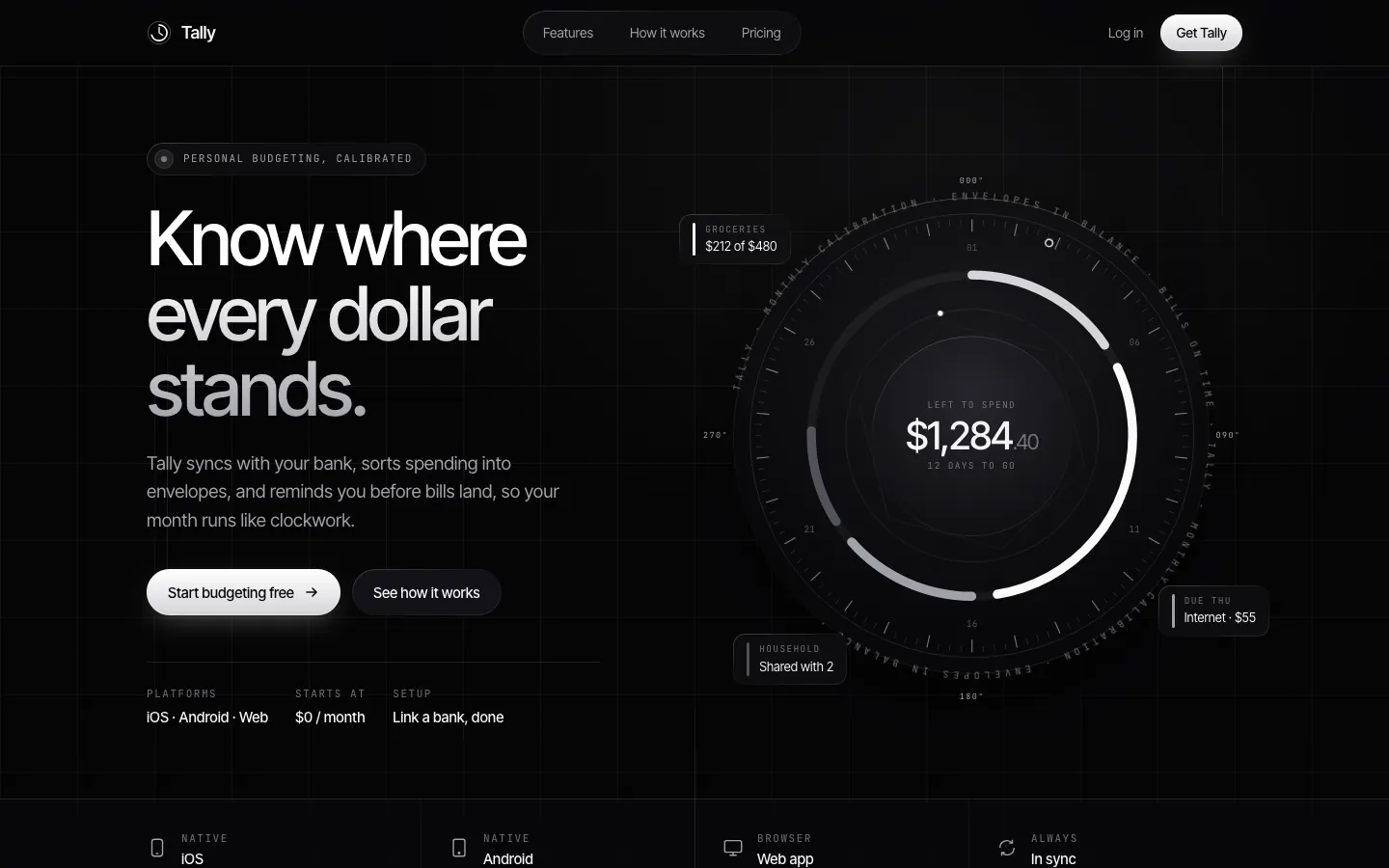
First screen only. Switch to side by side to read the full pages.
Scroll either page; the other follows.
Light Mode Paper Technical frames a warm paper Tally inside a dark border, with Inter Tight, many JetBrains Mono labels, bracketed panels and one red-orange accent. The dashboard is neat and technical, like a well-made instrument panel in daylight. Pick it if you want a technical product that still feels warm.
Side by side
| Field | Glass Dark Mode Clock (Meng To) | Light Mode Paper Technical (Meng To) |
|---|---|---|
| Fonts |
|
|
| Colors |
|
|
| Pick it for |
|
|
| Skip it for |
|
|
| Observations |
|
|
Install Glass Dark Mode Clock (Meng To)
1 Run in your terminal
npx degit MengTo/Skills/agent-skills/web-design/glass-dark-mode-clock#main .claude/skills/glass-dark-mode-clock2 Or paste a prompt into Claude Code, Codex, Cursor or Gemini
It tells your tool to install this from its source repository.
This install is for Claude Code only; for other agents use Copy prompt or copy the skill folder.
Copies just this skill's folder into your project's .claude/skills.
Check the source for the latest instructions.
Install Light Mode Paper Technical (Meng To)
1 Run in your terminal
npx degit MengTo/Skills/agent-skills/web-design/light-mode-paper-technical#main .claude/skills/light-mode-paper-technical2 Or paste a prompt into Claude Code, Codex, Cursor or Gemini
It tells your tool to install this from its source repository.
This install is for Claude Code only; for other agents use Copy prompt or copy the skill folder.
Copies just this skill's folder into your project's .claude/skills.
Check the source for the latest instructions.